Map regions
A region is a piece of map stored on your watch that works offline and without your phone.
What a region is
RawPace doesn’t use Google maps: it uses OpenStreetMap maps, prepared on the RawPace server. A region is the area around a place (a square that covers the circle of the radius you choose), cut out of that map and stored on the watch. It takes up space on the watch (from a few MB to several hundred, depending on the radius and how built-up the area is) and works offline.
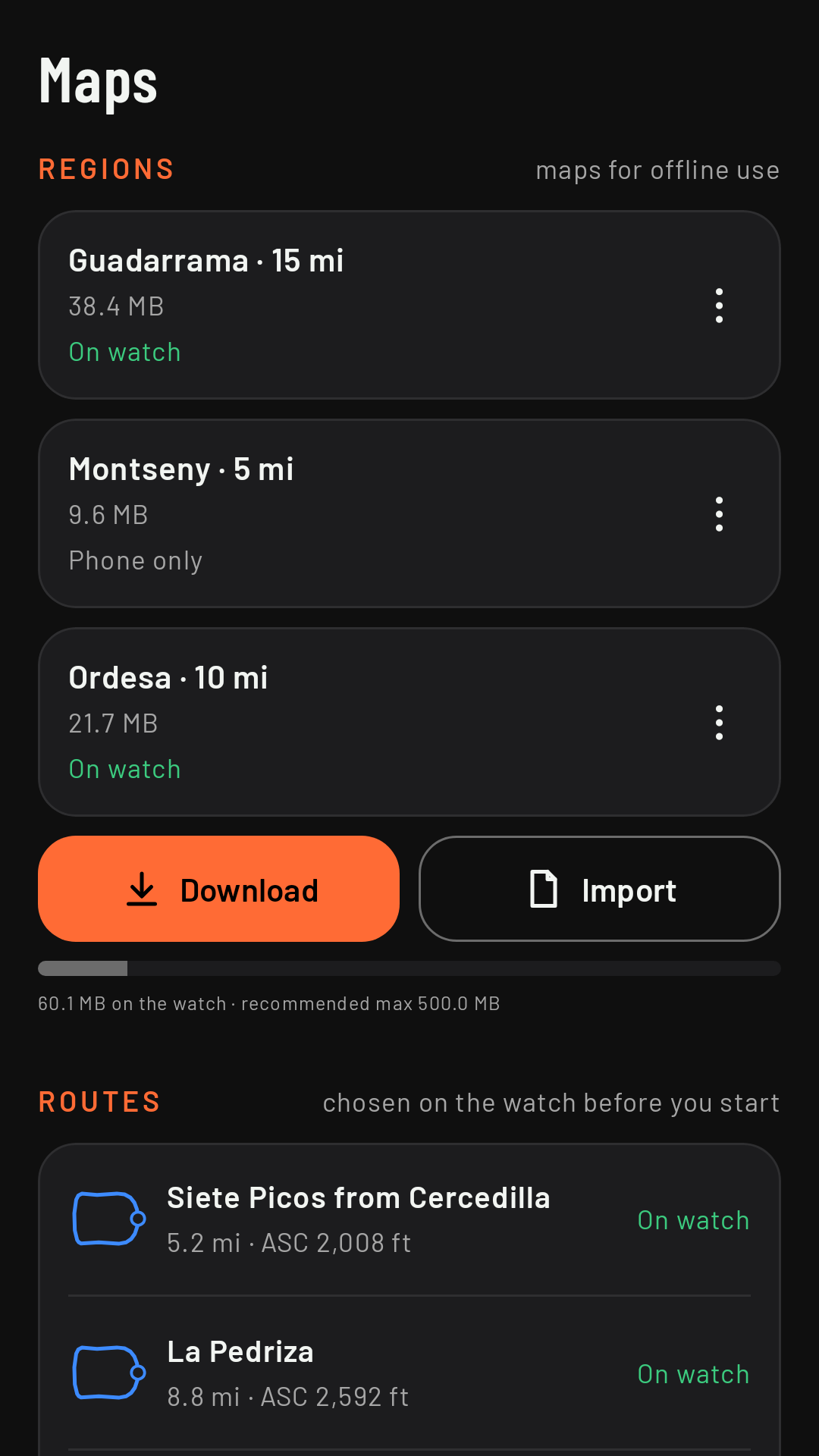
Downloading a region
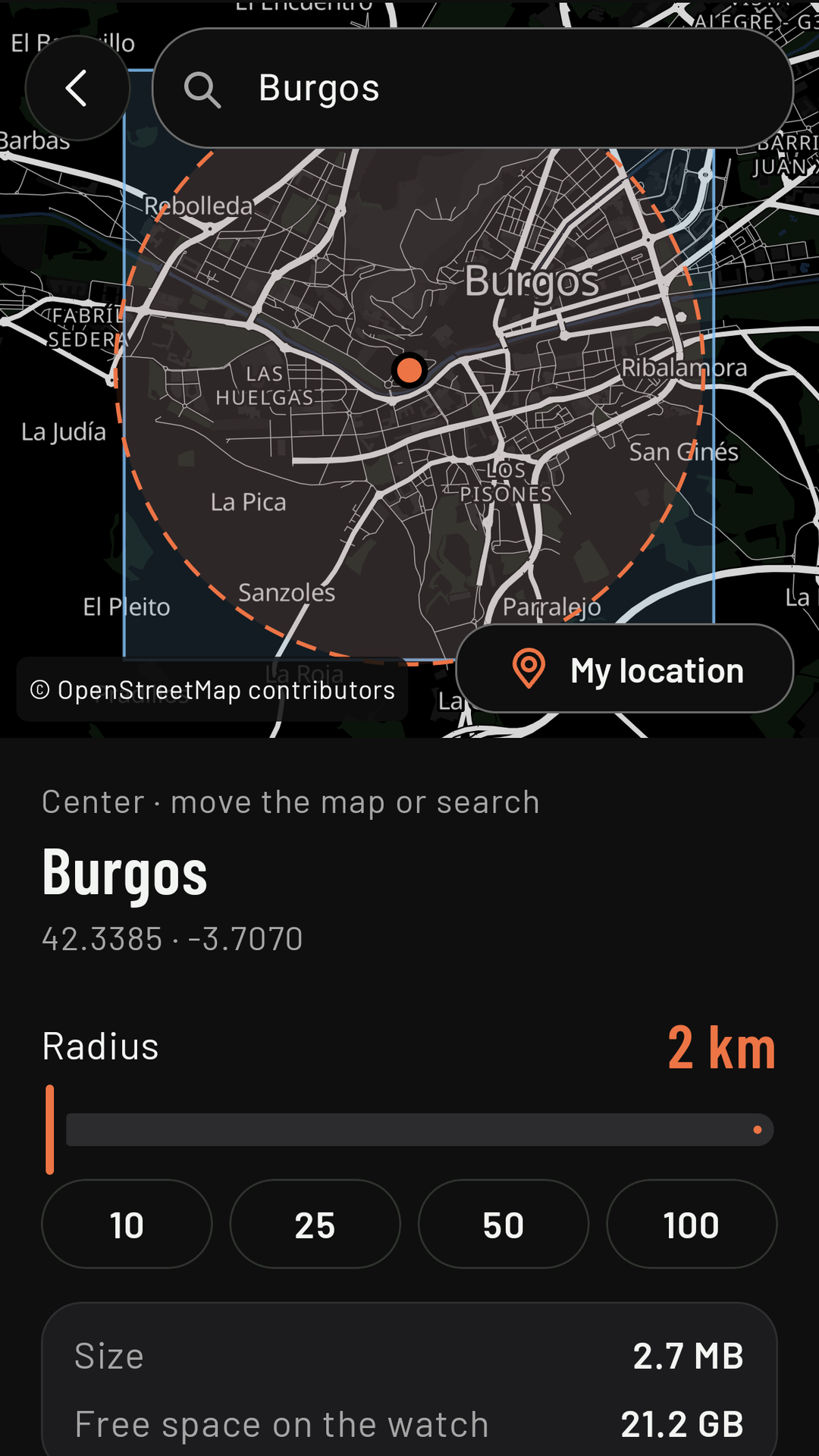
On the phone, Maps › Download region:
- Search for a place or tap My location, and move the map to center it.
- Choose the Radius: 10, 25, 50 or 100 km (up to 150 km).
- Check the Size and the Free space on the watch.
- How it gets to the watch: Watch Wi-Fi (fastest; the network has to be saved on the watch itself) or by Bluetooth from the phone (slower, no Wi-Fi needed). The app tells you how long each will take.
- Download to the watch.
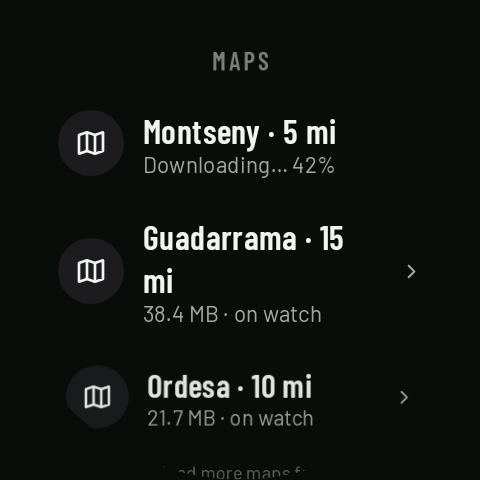
You can close the phone app: the download carries on. It’s best done with the watch charging, especially for a big one. In Maps › Regions you can see the status of each (“Waiting for the watch’s Wi-Fi…”, “Downloading on the watch… N%”, “On watch”) and, at the bottom, how much space they take in total and the recommended maximum (500 MB).
On the watch
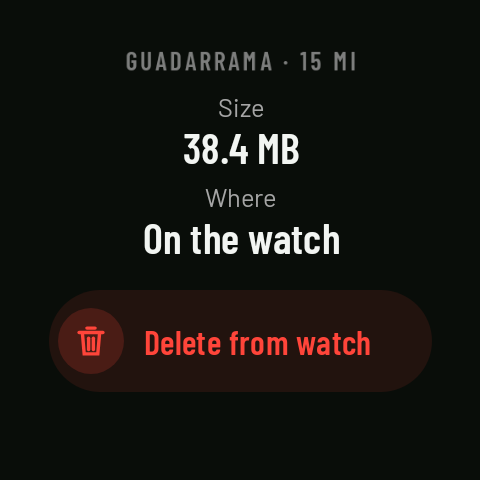
On the watch home screen, Maps lists the regions it has, with their size. Tap one to see its details, with Delete from watch (you can send it again from the phone later).
No region
If you’re outside every region and not following a route, the map says “No map for this area”. With a route, the route, your position and the alerts keep working, on a plain background.
Your own map
If you have a map in .pmtiles format, you can also load it in Maps › Import map and send it to the watch.