Data screens
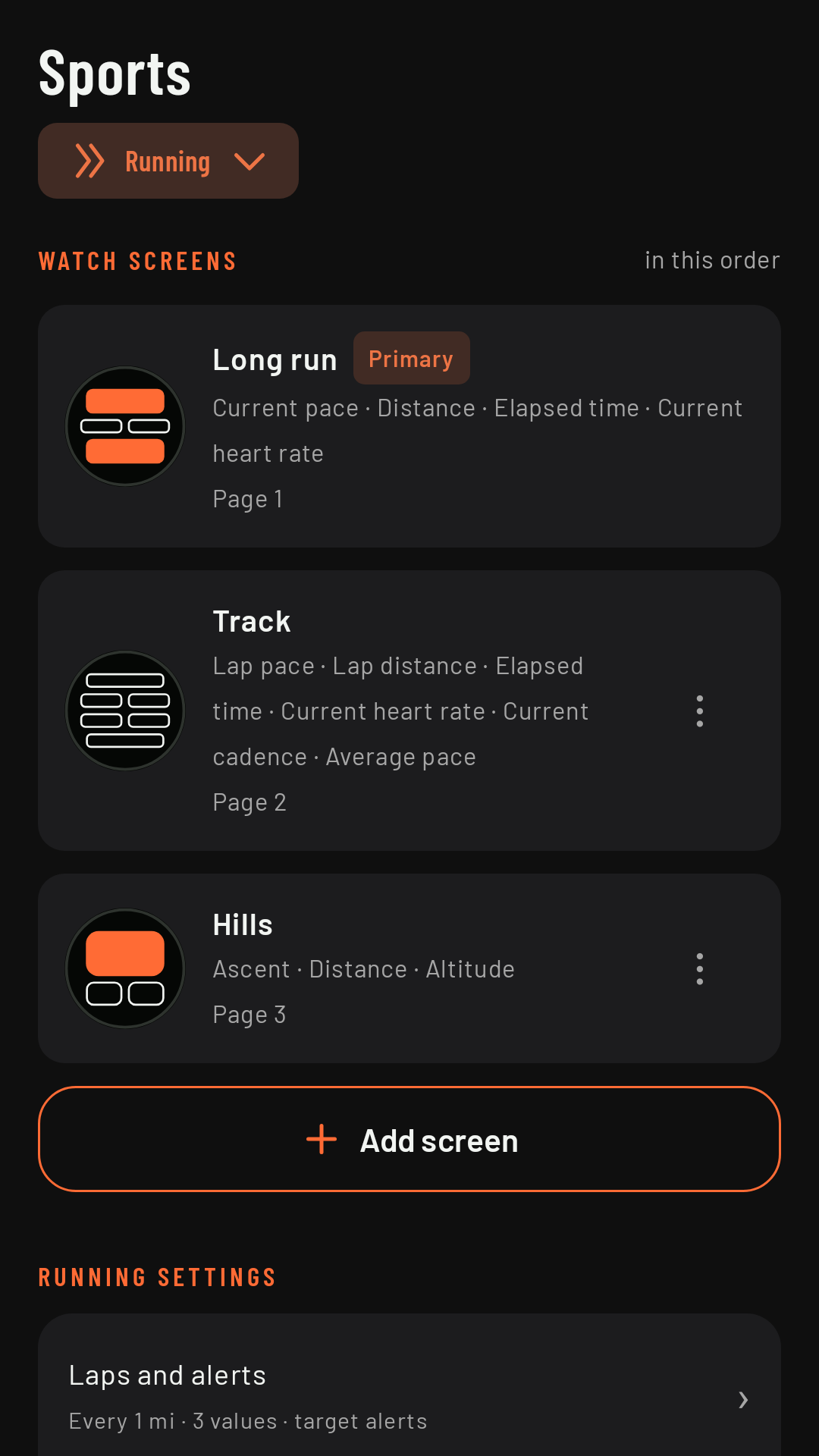
Each sport has its own data screens, which become the pages you see on the watch during an activity. You design them on the phone, in the Sports tab, and they reach the watch automatically.
Layouts and slots
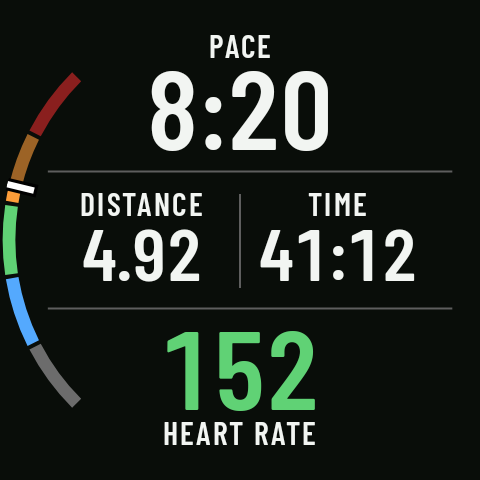
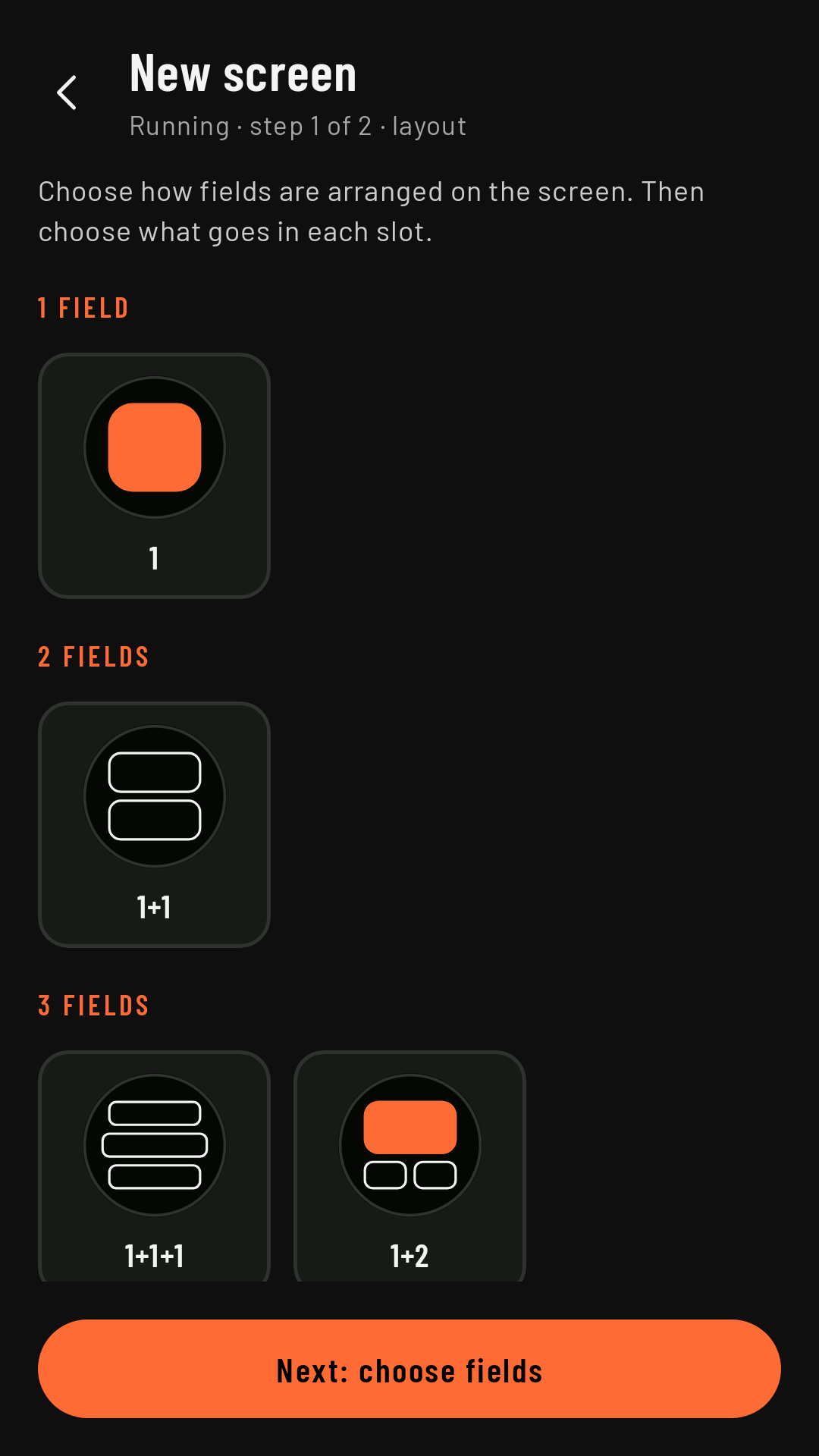
A screen is a layout (how the screen is divided up) with a field in each slot. There are eight layouts, from 1 to 8 fields: 1, 1+1, 1+1+1, 1+2, 1+2+1, 1+2+2, 1+2+2+1 and 1+2+2+2+1 (each number is a row; a 2 means two fields side by side). The fewer the fields, the bigger the numbers.
To create one: Add screen, pick the layout (“Choose how fields are arranged on the screen”) and tap Next: choose fields. Then tap each slot and choose its field. Give the screen a name and tap Save screen: you’ll see “Saved and sent to the watch”. Change layout switches to another layout and keeps whatever still fits.
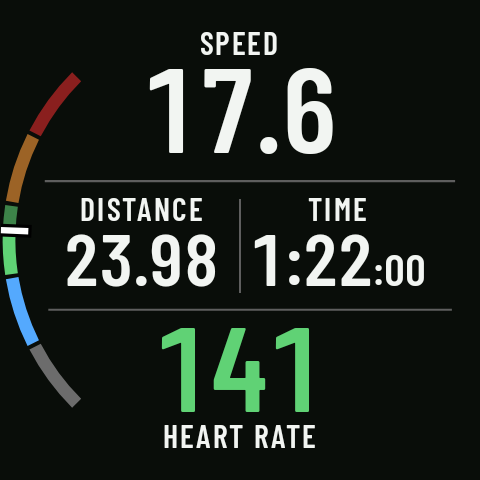
In the 1+2 layout, the large slot works best with short values (heart rate, pace, distance), and the app reminds you of this while you edit it. Once a time passes the hour mark, its seconds are shown smaller.
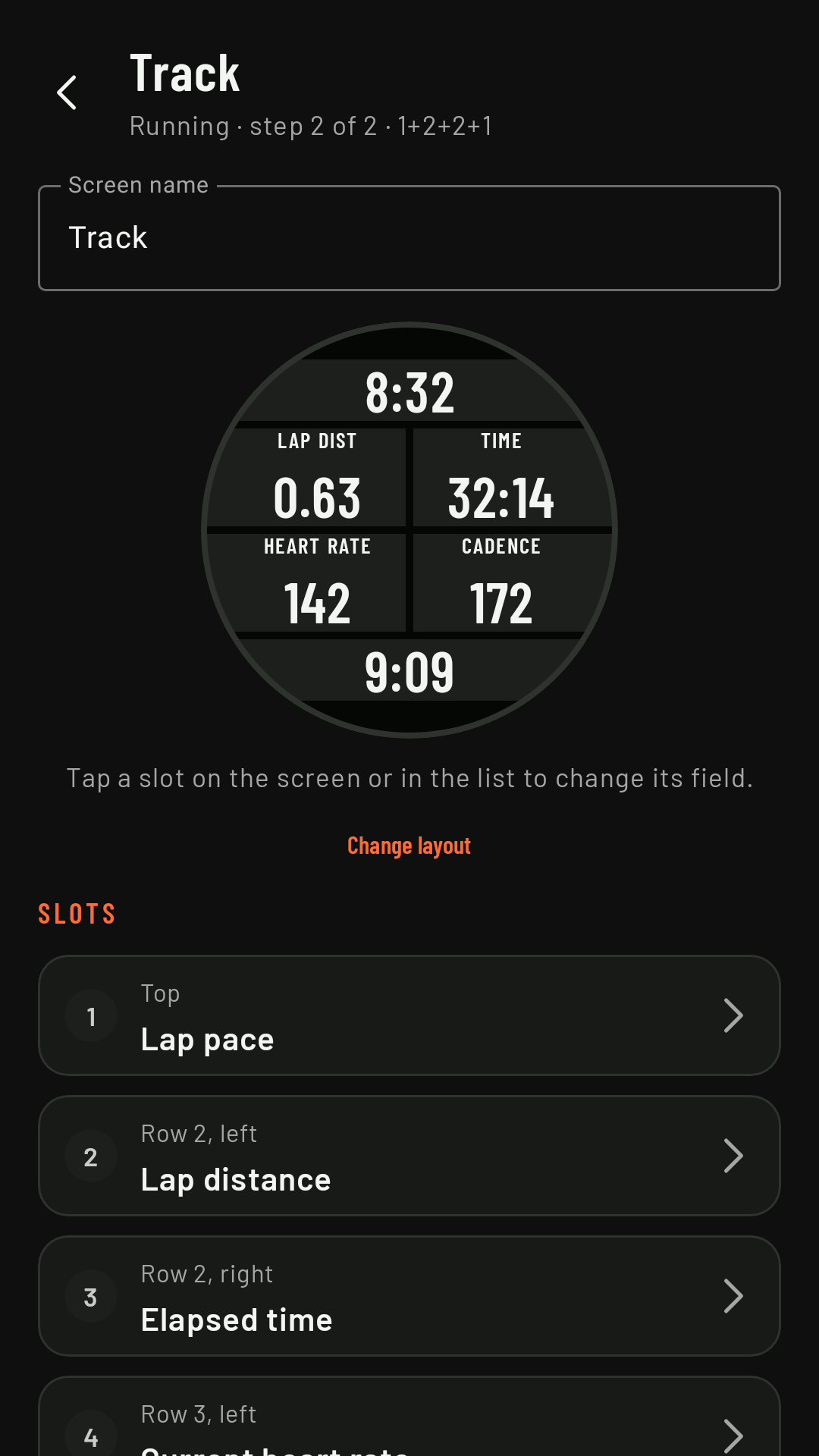
Choosing the fields
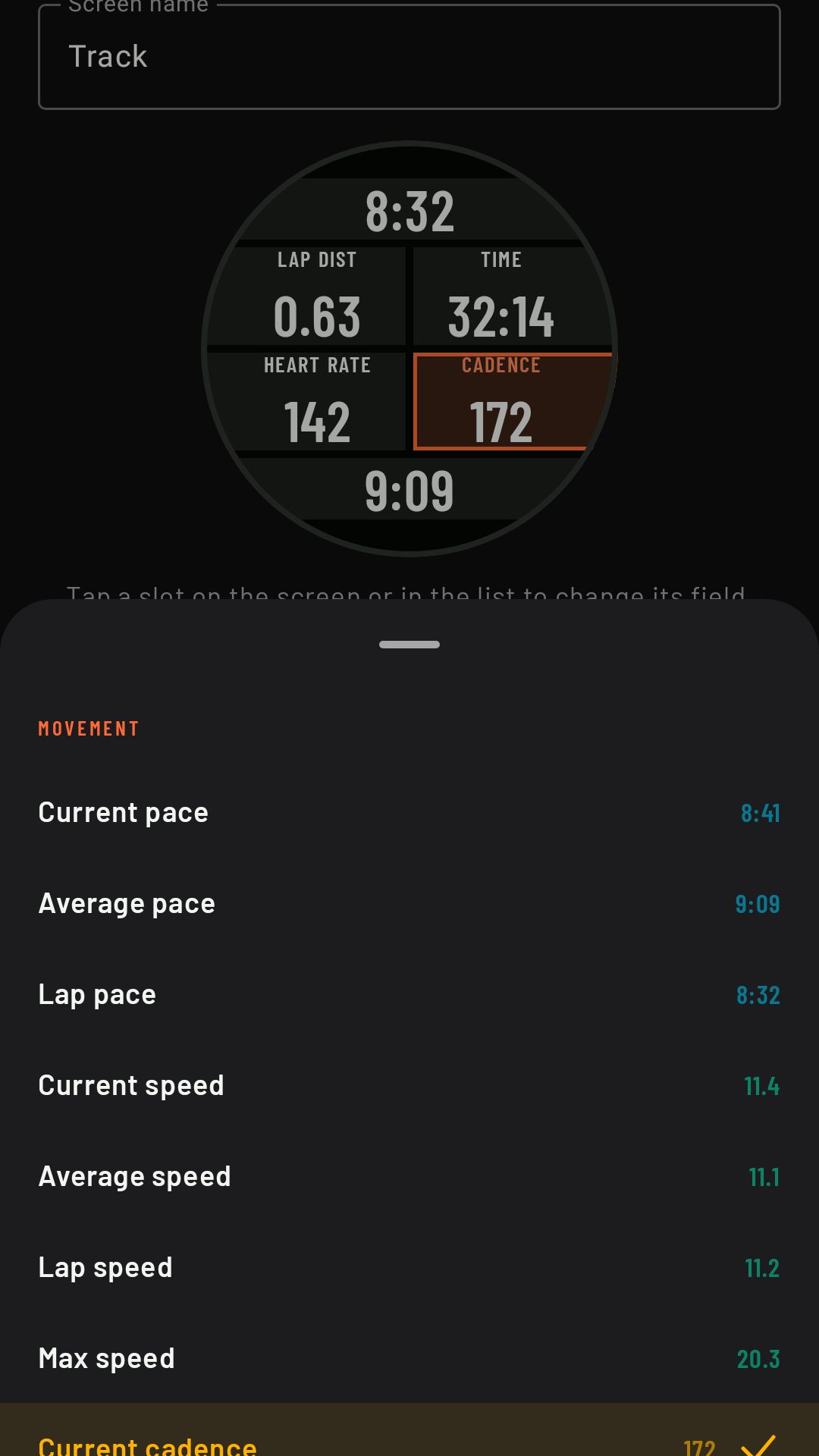
Tapping a slot opens the field picker, by category: Movement, Time & distance, Cardio, Elevation, Energy, Intervals and Other. Fields with no data source in that sport show Not available for this sport (for example, cadence on the bike, because RawPace doesn’t read pedal cadence sensors).
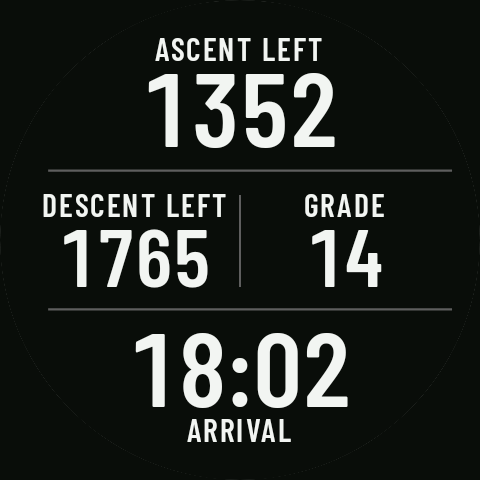
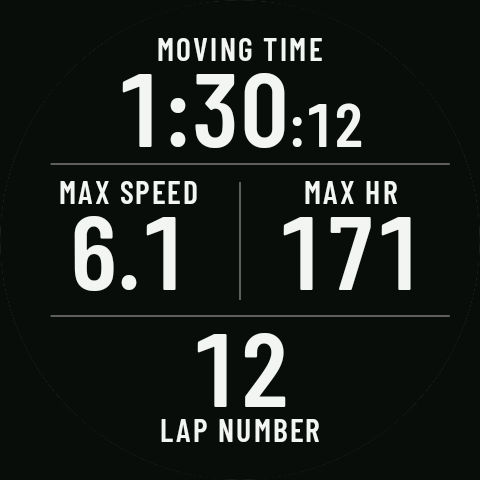
As well as the basics (pace, speed, distance, time, heart rate, ascent and descent, altitude, cadence, time of day, battery…) there are lap fields (time, distance, pace, speed and heart rate for the current lap, plus the lap number), route fields (next turn, next waypoint, ascent and descent remaining to the finish, estimated arrival time and route grade) and effort fields (vertical speed, moving time, max speed, max heart rate and time in your current heart rate zone). Some coming in 0.3
A few notes on the new fields:
- Ascent remaining, Descent remaining and Estimated arrival need a route. The arrival time uses your average speed including stops, so it stays realistic on long days out.
- Route grade is the gradient of the route where you are (it comes from the GPX), not something the watch measures.
- When you’re off the route, the route fields show “--”.
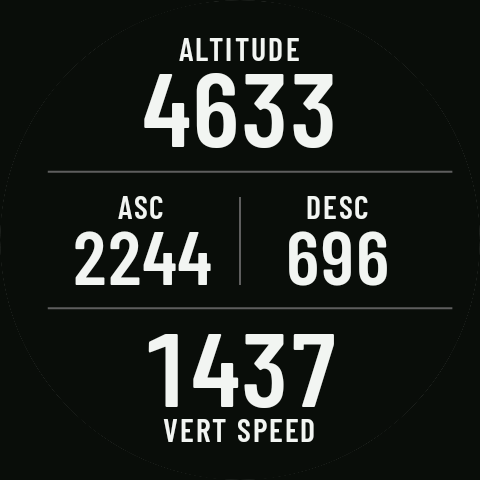
- Vertical speed is how many meters (or feet) you climb per hour, using the watch’s barometer.
The primary screen and the order
All the sport’s screens reach the watch as pages, in the order of the list; the Primary one comes first and is the one you see when you start. Your other screens have a ⋮ menu (the primary and the factory screens don’t): Make primary and Delete (removes it from the phone and the watch). Factory screens show as “Page N · default”. The watch adds the intervals, route elevation profile and map pages when they’re needed (for the intervals page you only choose two fields, in the workout).
Reading them on the watch
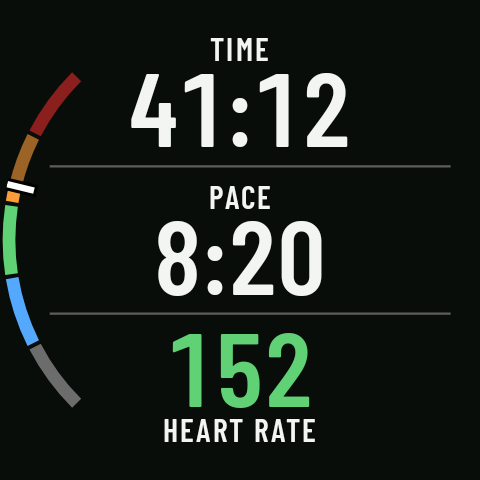
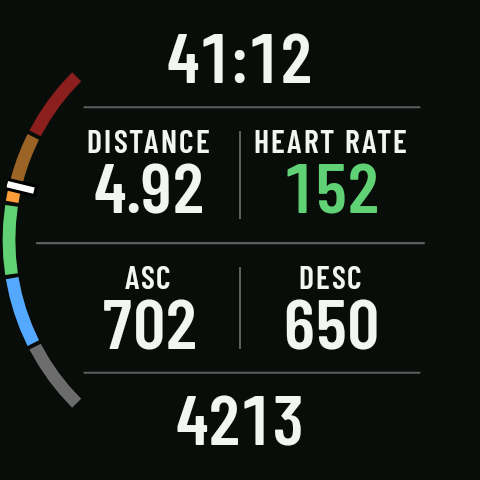
- Each field has a label with the full word if it fits (“DISTANCE”) or an abbreviation if it doesn’t (“DIST”).
- Numbers are shown without units so they can be bigger: the units are whatever you’ve chosen.
- -- means there’s no data right now (no GPS, stopped, no heart rate, no cadence in the last minute, off the route…).
- On the left, an arc shows your heart rate zone: it fills from the bottom up in each zone’s color.
Factory screens
Each sport comes with its own factory pages; you can’t edit them, and as soon as you save a screen of your own, that sport uses only yours:
| Sport | Page 1 | Page 2 |
|---|---|---|
| Running | Pace · distance and time · heart rate | Lap pace · lap distance and time · lap heart rate |
| Hiking | Distance · time and ascent · altitude | Average pace · descent and heart rate · time of day |
| Cycling | Speed · distance and time · heart rate | Lap speed · ascent and altitude · time of day |
Hiking also has a third elevation page: altitude, ascent, descent and vertical speed. Coming in 0.3 Trail running starts with two pages, and Walking and MTB with one; Gravel uses Cycling’s. Coming in 0.3 These only change for people who haven’t touched that sport’s screens.