Pages and gestures
During an activity you move between pages by swiping, and almost everything else uses gestures that can’t go off by accident: pausing takes a long press, and finishing means holding your finger down.
The page order
With Screens on two axes turned on (the factory setting), the pages are laid out in a cross:
- Up and down, with your finger or the crown: your data pages, in their order.
- To the left: Controls (pause, lap and the other options).
- To the right: the route elevation profile (if you’re following a route) and the map.
- The intervals page, if you’re doing a workout, sits at the top of the column, above the primary page.
With the setting off, all the pages sit in a single row, left to right: Controls, Intervals (if there’s a workout), your data pages in order, the route elevation profile (if there’s a route) and the map, always last. The change applies from the next activity. It’s in the sport’s settings, under Screen › Screens on two axes.
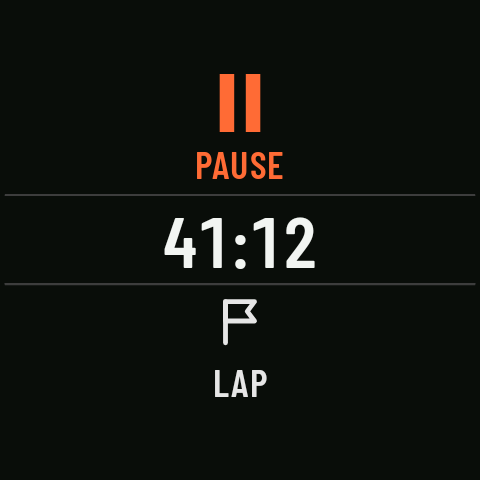
The activity starts on your primary page (with intervals, on the intervals page). In Controls, while the activity is running, Pause is at the top (one tap), the time is in the middle and Lap is at the bottom (with intervals, Next step).
Gestures
| Gesture | What it does |
|---|---|
| Swipe | Change page. |
| Long press on a data page | Pause or resume (the watch vibrates and jumps to Controls). |
| Double tap | Lock and unlock the screen. While it’s locked, you can’t change page or pause. In Controls, a double tap on Pause, Lap, Resume or the crown rows doesn’t lock, because each tap already does something there: it locks on the time strip, on Finish (while paused) and from any data page. |
| Hold 1 s | Finish and save (while paused). |
| Hold 2 s | Discard without saving (while paused, at the end of the Controls list). |
| One tap on the map | Move the map with your finger; it comes back with “Recenter” or on its own after 20 s. Coming in 0.3 |
| One tap on the route elevation profile | Explore the profile. |
Nothing you can do with a single tap ends or deletes an activity.
The crown
- In Controls, it scrolls through the options below. While running: waypoint, off-route and turn alerts (with a route), brightness and Finish. While paused: Lap, waypoint, the alerts, brightness and Discard. Coming in 0.3
- On the map and the route elevation profile, it zooms.
- With two axes, on the data pages, it moves from one page to the next.
The watch button and the double pinch
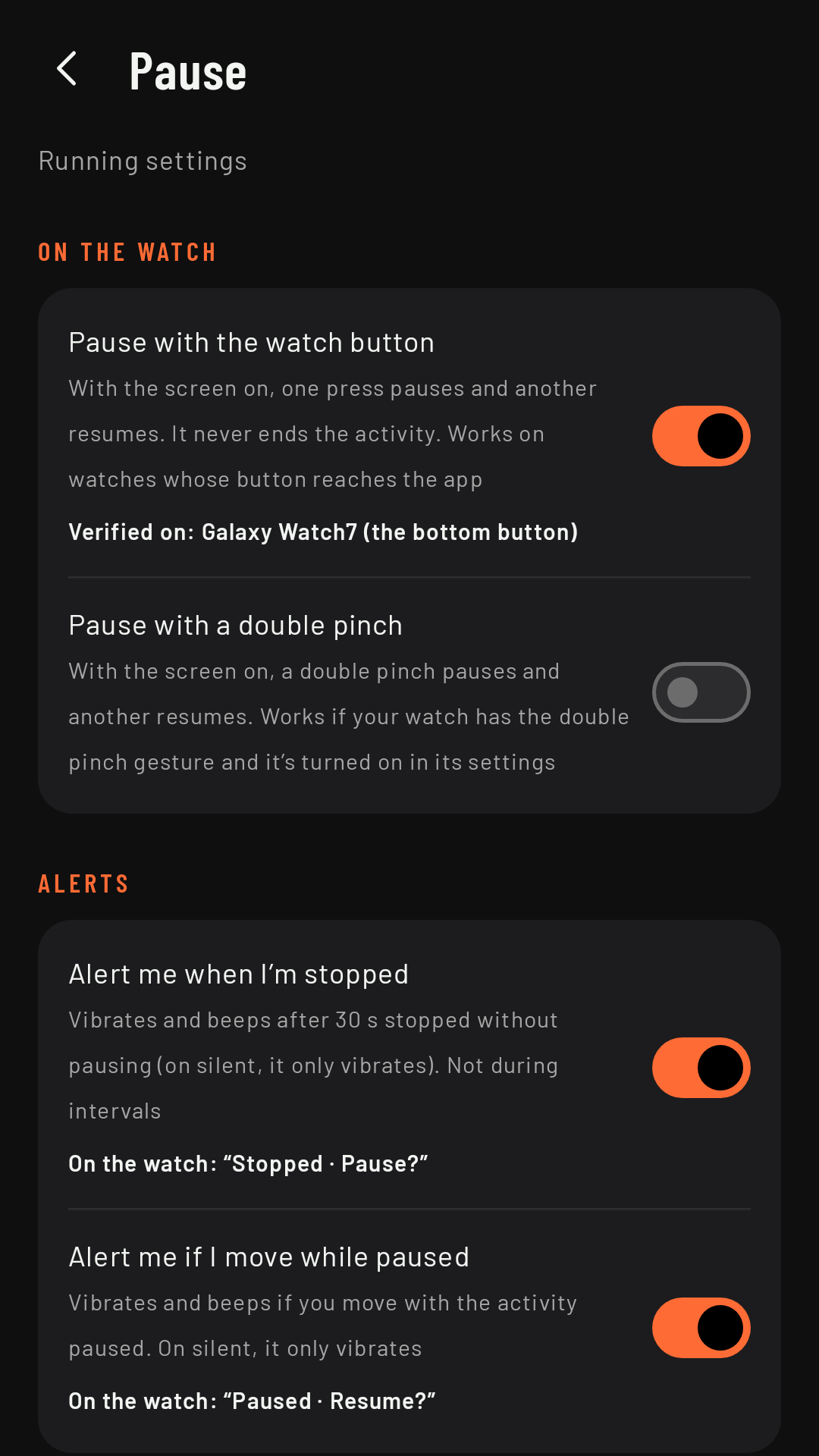
Coming in 0.3One press of the watch button pauses and another resumes. It’s on by default and you change it in the sport’s settings, Advanced › Pause › Pause with the watch button. It works on watches where the button reaches the app; it’s verified on the Galaxy Watch7 (the bottom button).
You can also pause and resume with a double pinch (tapping your index finger and thumb together twice), in Advanced › Pause › Pause with a double pinch, off by default. It works if your watch has that gesture and it’s turned on in the watch’s settings.
Both only work with the screen on (for at least a second) and unlocked, so your sleeve can’t trigger them by accident. They never finish or discard.
Leaving the app
During an activity, swiping to exit the app is turned off: the only ways out are Finish and Discard. If you press the watch’s home button, the activity keeps recording and shows on the watch face (“RawPace · Activity in progress”); tap it to go back.