The watch map
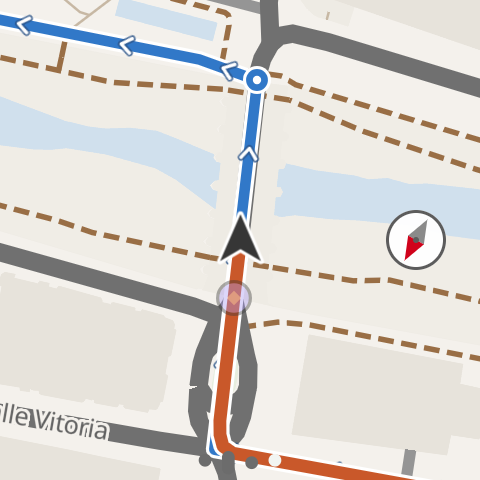
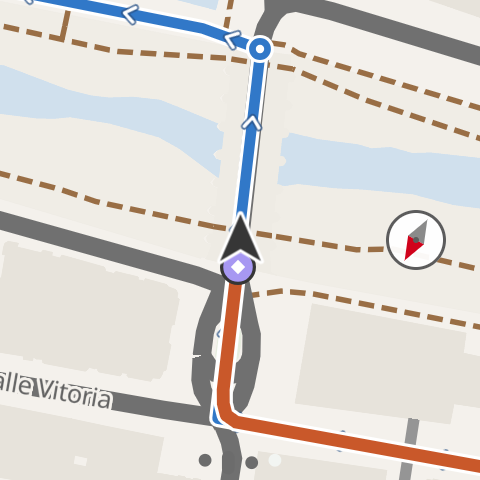
The map is always the last page of the activity: your position, your trail and the route, on top of the map region you have on your watch.
What you see
- Your position: an arrow pointing the way you’re heading (a dot if you’re stopped).
- Your trail since you started.
- The route, if you’re following one, with direction arrows, a circle on every turn still ahead of you, and the waypoints. Coming in 0.3
- At the top, when you open the page and when you tap the screen, a pill with the time and distance for a few seconds.
The first time you open it during an activity, “© OpenStreetMap” appears for a few seconds. While it loads you see “Loading map…”; with no position and no route, “Waiting for GPS…”.
Zoom and orientation
- The crown zooms in and out.
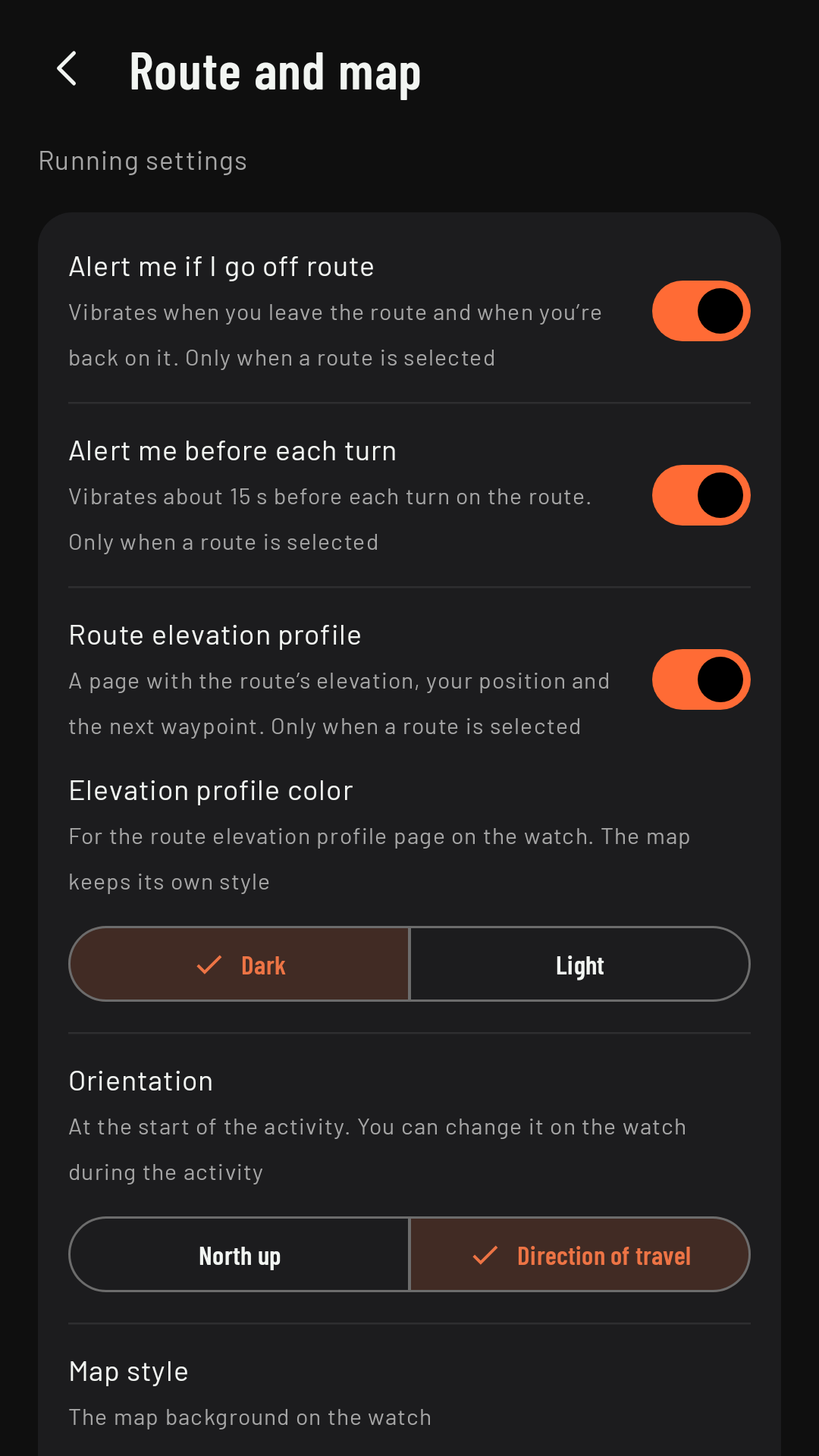
- The compass, at 3 o’clock, switches between North up and Direction of travel (the map turns so that what’s ahead of you is at the top). That change only applies to that activity; the factory setting is direction of travel, which you change in Route and map › Orientation. When running, after a turn the map lines up with your new direction sooner than in earlier versions. Coming in 0.3
- How it looks: with direction of travel, a needle whose red tip points north (the other half is grey) and turns with the map; with north up, a fixed “N”. Coming in 0.3
- Route and map › Map style: Light (the factory setting) or Dark.
Moving the map
Coming in 0.3To look further afield:
- Tap the map (anywhere except the compass and the strip at the top).
- Drag with your finger to move the map; the crown still zooms. Meanwhile you can’t change page, so your finger won’t take you off the map.
- To go back, tap Recenter (the orange button with a ring that empties as time runs out), or just wait: after 20 seconds untouched, the map goes back to your position at the same zoom.
A tap on the map while you’re moving it does nothing, so you don’t jump back by mistake. It also goes back on its own if you change page, lock the screen or lower your wrist. It works the same while paused.