Always-on screen and brightness
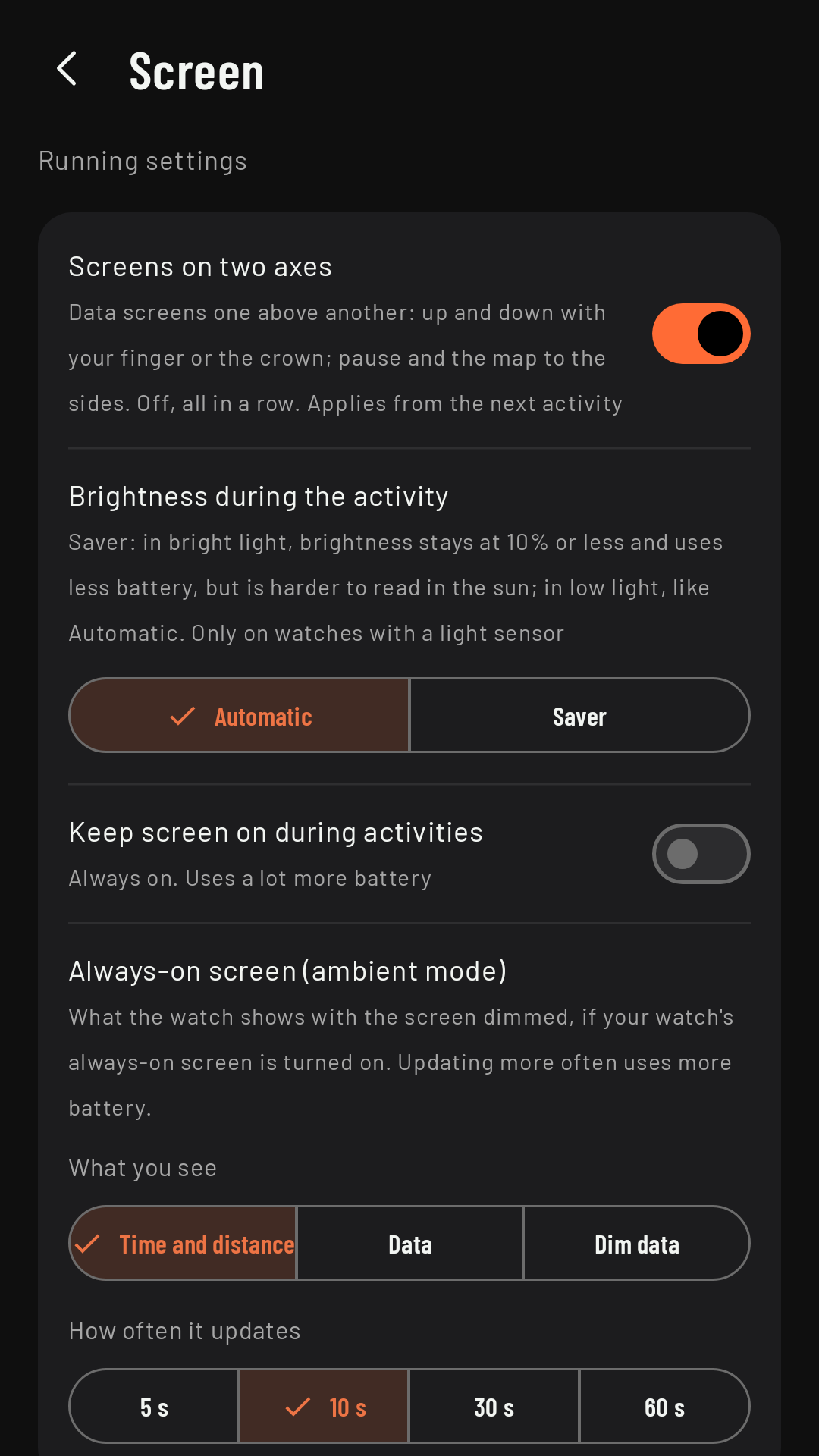
What you see when you lower your wrist depends on how your watch’s always-on screen is set. RawPace adds three settings: what the always-on screen shows, “Keep screen on”, so the screen never dims, and the brightness during the activity.
When you lower your wrist
If you have the system always-on screen turned on (in the watch’s display settings), the screen doesn’t go off when you lower your wrist: RawPace dims it. You set it for each sport, in Screen › Always-on screen (ambient mode), with two settings. Coming in 0.3
What you see on the data pages:
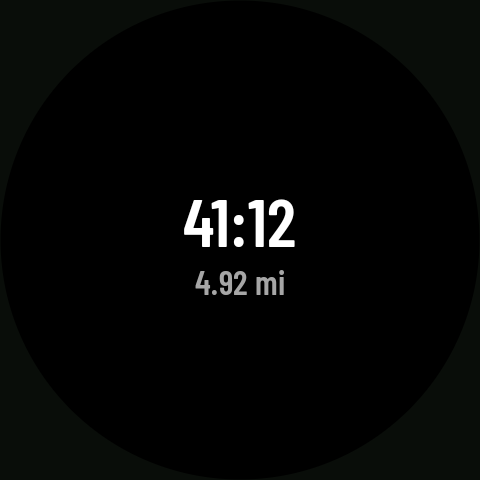
- Time and distance (the factory setting): a black background with the time and the distance, on every page. It uses the least battery. On screens that need it, it shifts slightly every minute to avoid burn-in.
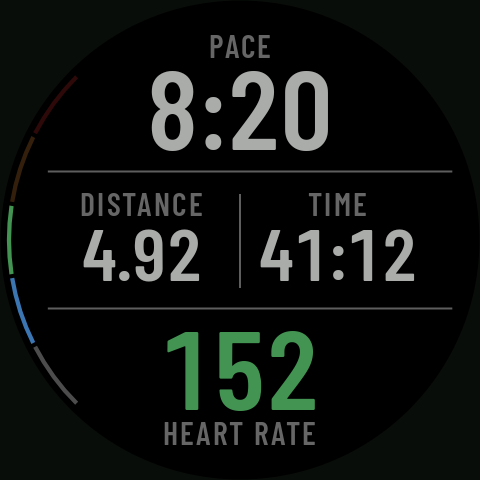
- Data: the page you were looking at, with its fields in their order, but darker: the numbers dimmed in the color of your number style, the labels in dark gray and the heart rate arc as a thin line on a very faint background. If you were on Controls, the last data page. Current pace and speed show “--” if GPS hasn’t sent anything for more than 10 seconds.
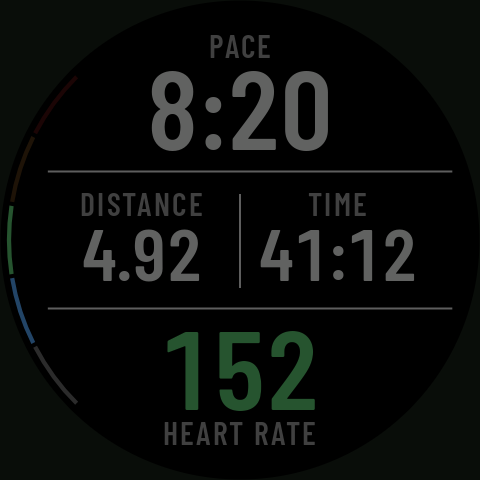
- Dim data: the same, even darker: slightly harder to read, and less eye-catching at night.
With Data or Dim data, the map and the route elevation profile also have their own dimmed version, if you were on them: on the map, the route as a thin line with north up and no map underneath, your position in white and, in large type, the next turn with its arrow and distance; on the profile, the same page in grays. When you raise your wrist you’re back on the same page.
How often it updates: every 5, 10 (the factory setting), 30 or 60 seconds, for every view. More often uses more battery. At 60 s the time is shown in h:mm; at the others, with its seconds, and each redraw shows the time at that moment. During intervals, what’s left of the step goes in 10-second steps, rounded up: “1:30” means at most 1:30 to go.
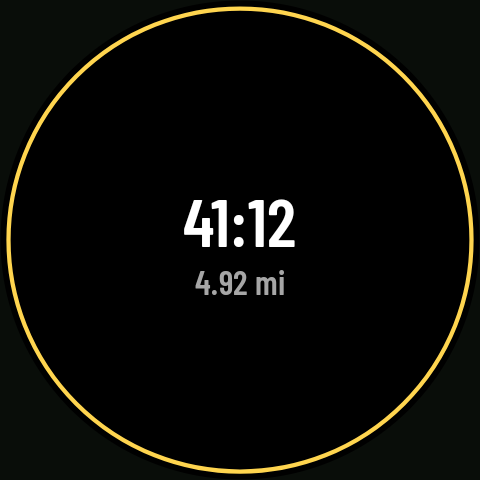
With Data and Dim data the watch uses a little more battery than with Time and distance. When paused, the yellow ring shows on top. Alerts don’t appear with your wrist down: they turn the screen on. With Keep screen on turned on, the screen never dims and this setting isn’t used.
If you have the system always-on screen turned off, the screen goes off when you lower your wrist. The activity keeps recording just the same; when you raise your wrist, you’re back where you were.
Keep screen on
Screen › Keep screen on during activities keeps the RawPace screen on at normal brightness for the whole activity, even when you lower your wrist. It’s useful, for example, with the watch on your handlebars. It uses a lot more battery. You can also turn it on for a single activity in This activity. Before 0.3 it could stop working shortly after the start. Coming in 0.3
Brightness during the activity
Coming in 0.3Screen › Brightness during the activity: Automatic (the factory setting: the watch’s own brightness) or Saver. With Saver, when there’s daylight the brightness doesn’t go above 10 %: it uses less battery at the cost of being harder to read in sunshine; in low light it does the same as Automatic. It only works on watches with a light sensor: on others it doesn’t show on the watch and, if you pick it on the phone, the watch uses Automatic. You can also change it for a single activity in This activity, or mid-activity in Controls by tapping “Brightness”. When you’re not recording, and once the activity ends, the system brightness comes back. If you had Medium or Low (before 0.3), they become Automatic and Saver when you update. Coming in 0.3
Alerts with the screen off
Alerts vibrate even with the screen off. Since 0.3, every alert that vibrates also turns the screen on for about 5 seconds so you can see what’s happening. Coming in 0.3