Sending diagnostics
If something goes wrong, diagnostics give us what we need to find the cause. Nothing is sent automatically: you send it, and you can see what’s included first.
What’s included
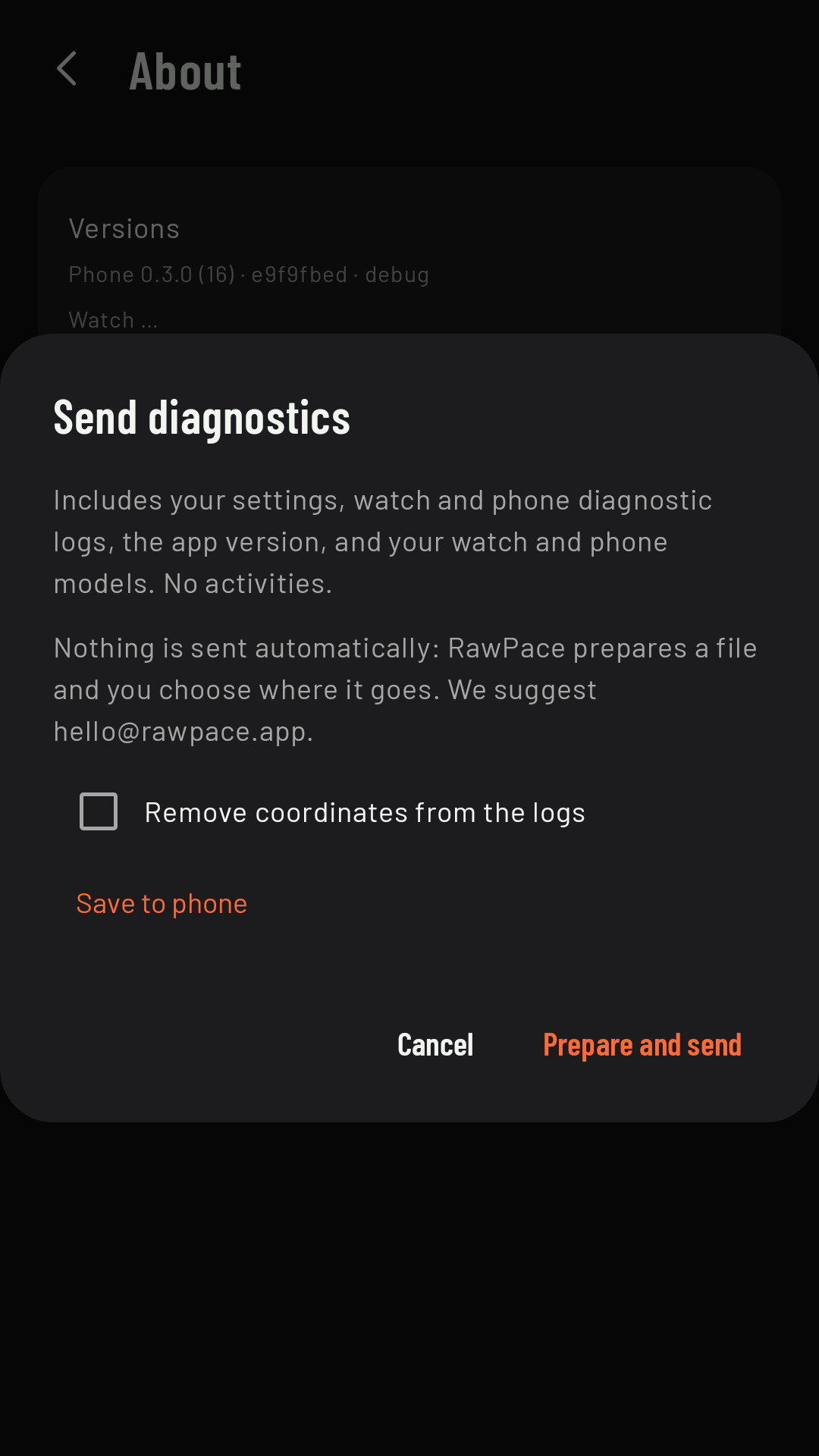
For an activity: its FIT file, the raw recording data, your settings, the watch and phone logs, the versions of both apps, and your watch and phone models. Without an activity, everything except the activity data. Remove the GPS track sends it without GPS positions (without an activity, Remove coordinates from the logs); that’s fine for almost everything, except problems with routes, the map or GPS.
Where to send it from
- For a specific activity: in its details, Send diagnostics for this activity. This is the most useful if the problem happened during an outing.
- In general: Settings › About › Send diagnostics.
Before sending, keep the watch nearby and connected: that way the diagnostics include the watch logs, which are the most important ones (with RawPace open on the watch it answers sooner, but you don’t have to). If they’re missing, the app tells you before sending and lets you Retry or Send anyway. Coming in 0.3 Send it the same day as the outing: the watch keeps a limited log and the oldest entries are gradually lost.
Where it goes
Prepare and send opens Android’s share sheet so you can send it by email (it suggests [email protected]) or with whichever app you prefer; Save to phone keeps it in a file to send later. Tell us in your message what happened and roughly what time.